
Checking a cut
You can check a video without watching it. Read its timeline as text, look at sheets of its frames, and let the layout check find what is off the frame or over the captions. Each takes seconds, so you, or your agent, can check after every change.
| To know | Run |
|---|---|
| What plays when, and which words each clip says | cutcraft inspect video.tsx |
| What it looks like | cutcraft look video.tsx |
| Whether anything leaves the frame, the safe zone, or covers the captions or the speaker | cutcraft video.tsx --check-layout |
| Where each thing sits at a moment | cutcraft where video.tsx --at 2.6 |
| Whether the exported file is sound | ffprobe and ffmpeg |
Every command finds the nearest cutcraft.json from the file's folder upward; --manifest names another.
Read the timeline as text
cutcraft inspect prints every track and element with its start and end in seconds, the stretch of source each clip plays and the words it says, the effects and keyframes on each element, and where the cuts fall. It needs no browser, so it is instant.
npx cutcraft inspect video.tsxvideo.tsx 1920x1080 30 fps 10.00 s (300 frames) 0 errors
track main (sequence)
0.00–10.00 clip talk asset:talk 2.00–12.00 words 0–23 "So, I mentioned this before, eclipses don't hap…"
track over (free)
0.50–4.50 shape name-card
0.65–4.50 title name-name "Maya Chen"
0.80–4.50 title name-role "Founder, Shed"
composition
0.00–10.00 captions captions
0.00–2.36 caption captions-1 "So, I mentioned this before,"Errors come first, on the top line, so a broken reference or a word a clip no longer plays shows before anything else. --at 2.5,word:12 lists what is on screen and heard at those moments, and --json prints flat rows for a program.
Look at frames
cutcraft look draws many frames in one browser start, as one contact sheet (look.png). Every cell is labelled with its time, its frame and what it is, and a legend printed beside the image says which elements are on screen in each. The frames are the export's own, so what a sheet shows is what the file renders.
Skim the whole cut
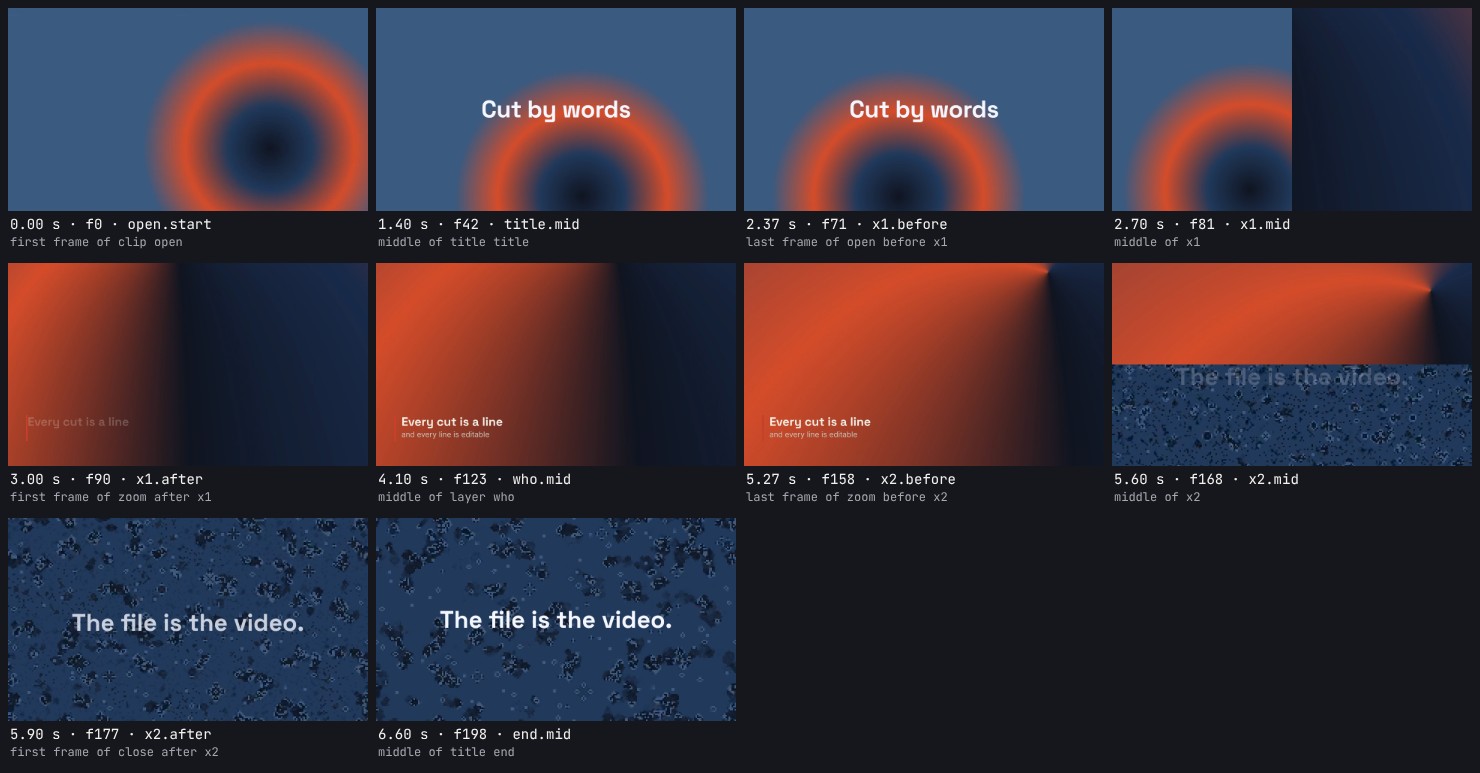
After each stage of an edit, cutcraft look video.tsx shows what an editor would scrub through: the first frame of each clip, both sides and the middle of every transition, and each title once.
Follow one change
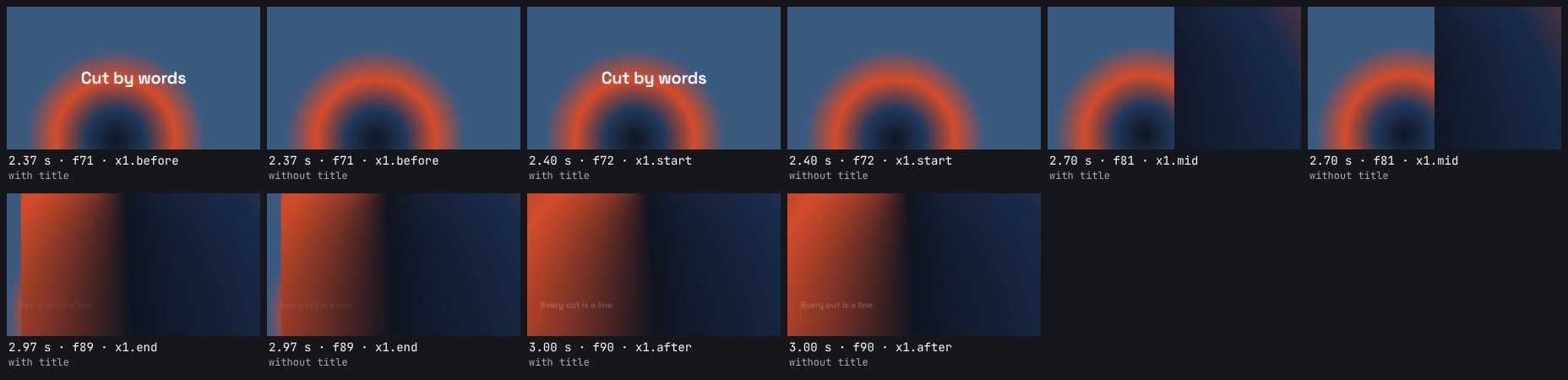
--around x1 walks through one transition, or through one title coming in and going out. Here each moment is also drawn without the title, to see how it leaves over the cut.
Compare with and without
--without grade draws each frame as written and without one effect, side by side, so the agent can see what a grade, a blur or a title actually does to the picture.

Read a move
--motion 2..3 draws a strip of small frames at even steps across a stretch, each labelled with its time, to read how something moves: an entrance, a keyframed push-in, a slide. A stretch is two times or an element's id.

See the safe zone
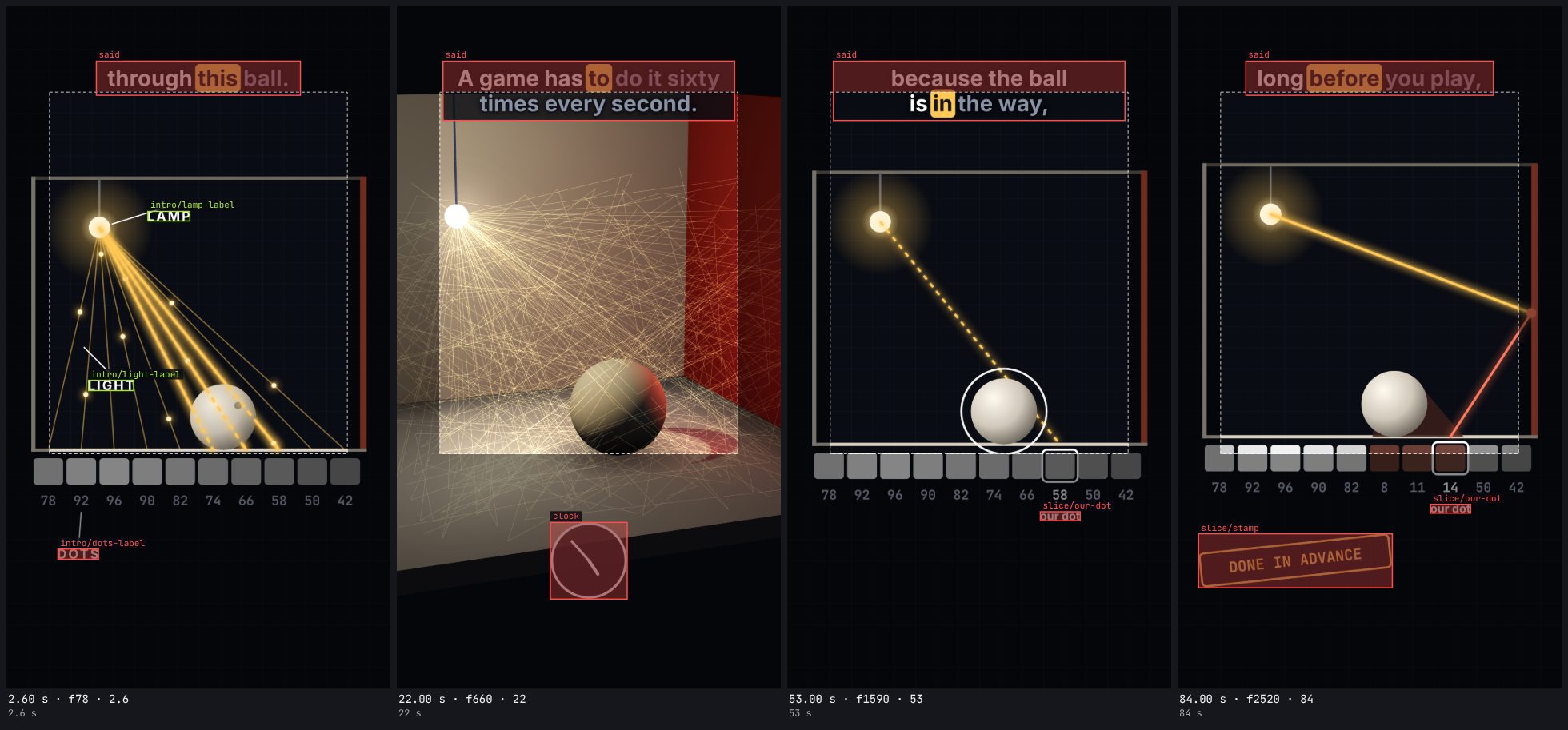
--zones tiktok draws a platform's safe zone over every cell: what is outside it shaded, and an outline round each overlay, the captions and each named part, red where it leaves the zone or the frame.
Listen to it
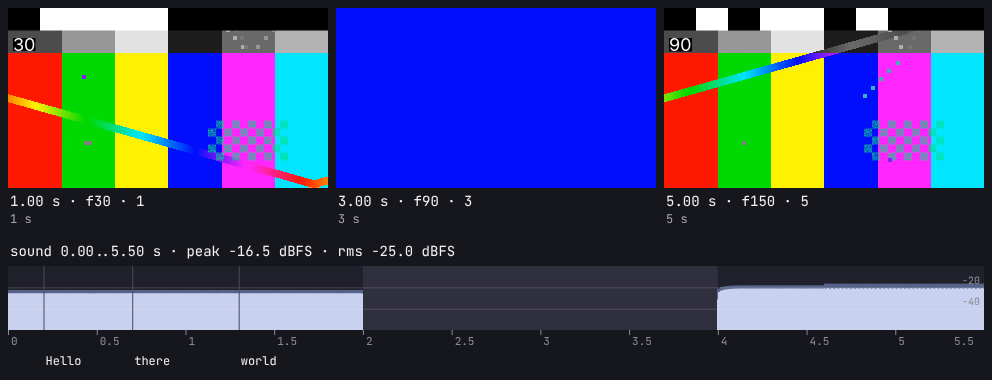
--listen all adds a strip of the mix under the frames: its level over time, the words where they are said, and the silent stretches shaded. The legend gives the peak, the average level and the loudness (LUFS) in numbers, and counts the samples above full scale, so the agent can tell that the music ducks under the voice, that nothing clips, and that no clip lost its sound.
Looking again is nearly free. Every frame drawn is kept beside the file, under a key made from what draws it, so after an edit only the frames that changed are drawn again: an agent can look after every step.
The CLI reference has every option.
Check the layout
--check-layout finds anything drawn over the picture that leaves the frame, leaves a platform's safe zone, or covers the captions or the speaker. It reports each problem like a compiler: where it is in the file, when it happens, and the smallest fix.
npx cutcraft video.tsx --check-layout --safe-zone tiktokvideo.tsx:30:9: subject: title "t1" covers the subject from 0.53 s to 2.40 s.
30 | <Title id="t1" anchor="v1" offset={0.5} duration={2} size={40}>Hello</Title>
| ^
fix: move it down 89 px (transform.position.y +89), then check again: the move may run into something else
1 layout issue on 1 element in 900 samples (every frame, safe zone tiktok).It writes no file, and exits with 3 when it finds a problem, so a script can stop on it.
| Rule | Reported when |
|---|---|
frame-edge | Part of the element is outside the frame. |
safe-zone | It is inside the frame but outside the safe zone. |
captions | It overlaps a line of captions. |
subject | It overlaps the subject, such as the speaker's face. |
--safe-zone takes tiktok, reels or shorts (each platform's published zone for 1080×1920), title-safe (the default) or action-safe, or your own top,right,bottom,left fractions.
The subject comes from the manifest, where an asset can list boxes over its source time. For footage without them, give one with --subject x,y,w,h, as fractions of the frame: --subject 0.2,0.18,0.6,0.37.
How it measures
It samples every frame (or every --step seconds, between --from and --to) and measures the pixels each element actually draws, after its entrance, exit, keyframes and transform, so a slide that crosses the edge between two samples is still caught. Hollow graphics count by the cells their ink touches, so corner brackets round a face don't cover it. Overlays beneath the footage, ones that fill the frame and ones fainter than 10% are not checked. Subject boxes are mapped through each clip's crop, fit and transform.
From code: checkLayout({ state, media, source: { ...video.source, file }, safeZone, subject }), and formatLayout(result) for the text.
The report as JSON
--json prints the same report as data. from and to are the first and last samples with the problem; at is the worst one, where box is the element's ink and area is what it breaks. Pixels are counted from the top left.
{
  "summary": "1 layout issue on 1 element in 900 samples (every frame, safe zone tiktok).",
  "issues": [{
    "rule": "subject", "id": "t1", "kind": "title", "with": "subject", "from": 0.533, "to": 2.4, "at": 0.533,
    "box": { "x": 273, "y": 165, "w": 96, "h": 30 }, "area": { "x": 224, "y": 72, "w": 192, "h": 180 },
    "message": "title \"t1\" covers the subject from 0.53 s to 2.40 s.",
    "fix": "move it down 89 px (transform.position.y +89), then check again: the move may run into something else",
    "source": { "file": "video.tsx", "line": 30, "column": 9, "code": "        <Title id=\"t1\" …>Hello</Title>" }
  }],
  "samples": 900,
  "warnings": []
}
Name the parts of a layer
To the check a <Layer> is one box, whatever its code draws. Give an element inside it a data-name and the check measures that element on its own:
<Layer id="diagram" start={0} duration={8}>
  <svg width={1080} height={1920}>
    <text data-name="lamp-label" x={470} y={624}>LAMP</text>
  </svg>
</Layer>
It is reported as the part diagram/lamp-label, at the line that names it, and the layer is not reported a second time for the same thing. Its advice is a move in pixels to make in the layer's code. Code that names nothing is checked as before, as one layer. A part that is faded out or not displayed is not measured.
A layer that is a ground for other things, such as a scrim that darkens the footage under a title, says so with the ground prop. The check then treats it like a background beneath the footage: it is not held to the safe zone and is not said to cover the captions. cutcraft inspect marks it ground. <Three> and <Motion> are layers and take the prop too.
<Layer id="scrim" anchor="talk" duration={{ until: "talk" }} ground>
  <div style={{ position: "absolute", inset: 0, background: "linear-gradient(transparent 60%, #0b1530)" }} />
</Layer>
Where things are at a moment
The check speaks only when a rule is broken. cutcraft where answers the plainer question, where is everything at this moment:
npx cutcraft where video.tsx --at 2.6 --safe-zone tiktok2.60 s (frame 78)
diagram layer x 96..980, y 520..1340 in frame tiktok: in
diagram/lamp-label part x 398..516, y 577..604 in frame tiktok: in
diagram/dots-label part x 145..259, y 1527..1556 in frame tiktok: out bottom 296 px
said captions x 253..827, y 1154..1250 in frame tiktok: in over "diagram" (574 x 96 px)There is a row for each overlay, for the captions and for each named part: its ink as a box in pixels from the top left, whether that is inside the frame and inside the safe zone and by how much it is not, and what it overlaps. --at takes the moments inspect and look take, several at once. Without --safe-zone a portrait video is held against tiktok, reels and shorts together, and any other against title-safe. --json prints the same as data. It reports and never fails a file for what it finds: --check-layout is the judge. To see the same on the frames, look --zones draws the zone and each box over a sheet. From code: whereThings({ state, source, media, at }) and formatWhere(result).
Check an exported file
To check a file you exported:
ffprobe -v error -show_streams video.webm                 # codec, size, frame count, one video and one audio stream
ffmpeg -v error -xerror -i video.webm -f null -           # decodes without a single error
ffmpeg -i video.webm -vf "select=eq(n\,90)" -frames:v 1 frame.png   # one frame, to look at
Next
- Exporting: formats, a server, and faster exports.
- CLI reference: every command and option.